Timeline maker for milestones that arrange themselves
The typical timeline maker gives you a canvas and a zoom slider. You plot the events, wrestle the overlapping labels apart, and the deck still gets a screenshot at the end. Beautiful.ai builds the timeline as a slide instead. Drag a milestone and the layout adjusts around it, colors follow your presentation theme, and the finished timeline is ready to present, share, or export the moment you stop editing.



The timeline maker that lives in your deck
Timeline tools stop at the graphic. Beautiful.ai keeps the timeline inside the presentation it was always headed for, so the milestones and the story around them stay in one place.
Milestones that behave
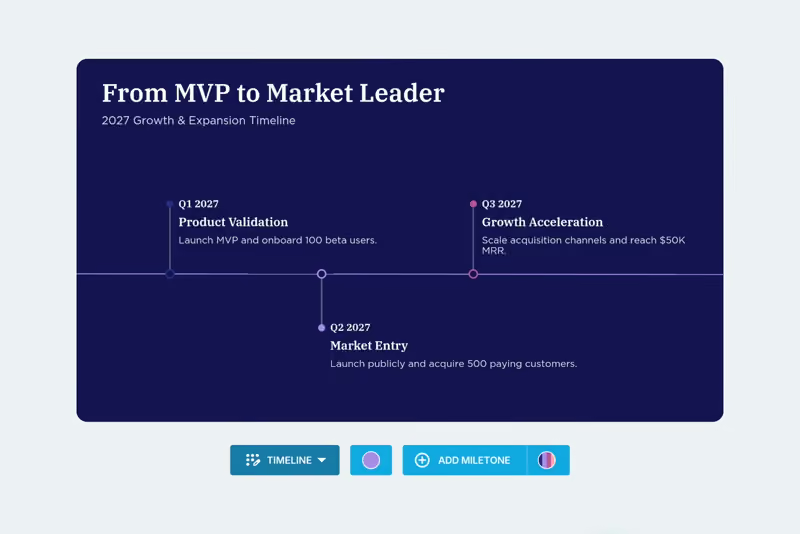
Add a milestone for every kickoff, launch, and deadline. Grab the six-dot menu and drag it anywhere along the line, and the slide adjusts the layout for the best fit as you move things around. When the spacing drifts, one click on Auto Arrange Milestones distributes everything evenly. Five milestone styles are available, from a simple marker to media with text.
Three styles for three kinds of stories
The Line style is the classic straight timeline, milestone markers connected by a solid line, built for clear chronological sequences. Arrows connect milestones with directional cues when your timeline is really a process in motion. Spans divide the line into labeled stages such as Planning, Execution, and Review, and start and end markers can frame a window of time. Line, span, and milestone colors all come from your chosen theme.

AI drafts it, you direct it
Prompt the AI assistant with the timeline you are looking to create and watch it come together automatically. Upload documents or data for context and the AI will generate a timeline that fits your story. It can also rewrite, expand, or shorten milestone copy right on the slide, and draft speaker notes from the content in front of it. Start from the Timeline Slide template or from Create with AI.

Create a timeline in three steps
From blank slide to presentation-ready milestones, with no screenshot pasting at the end.
1
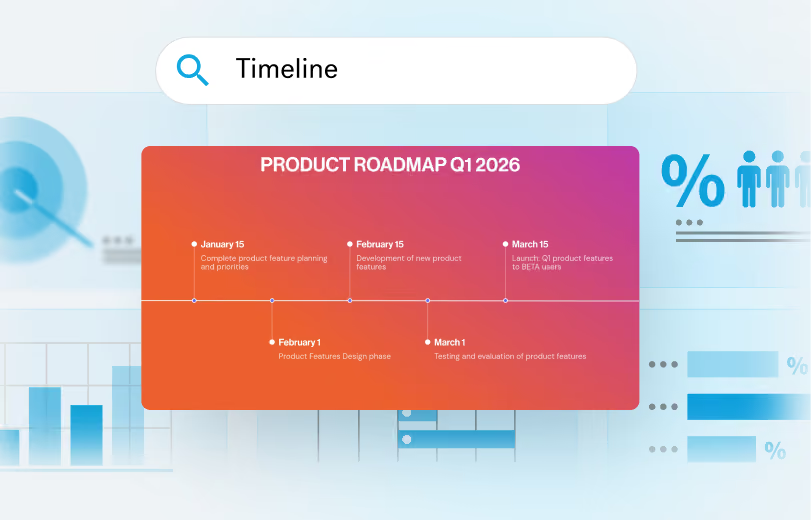
Start with the timeline template
Open the Timeline Slide template, or describe the timeline you need to Create with AI. Uploading a project document gives the AI the dates and milestones it needs to draft the first pass for you.
2
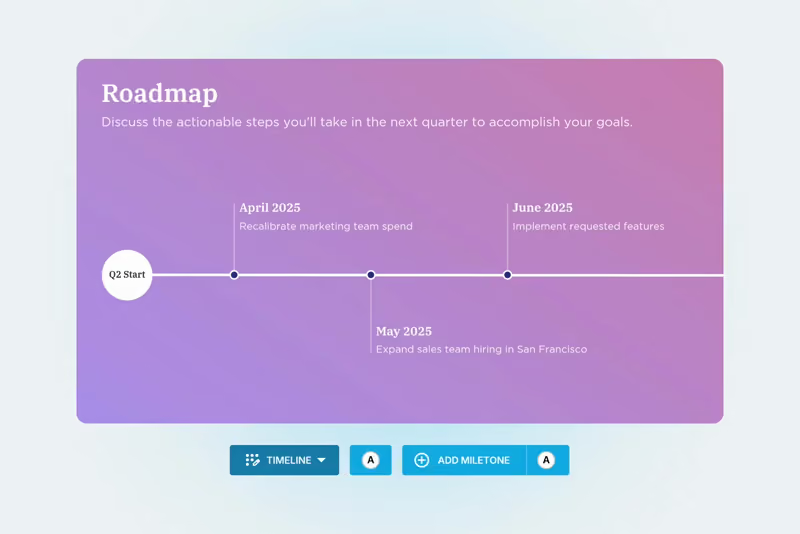
Add your milestones
Mark the events that matter, from kickoff to launch. Drag each milestone along the line and let the slide adjust the spacing, or click Auto Arrange Milestones to distribute them evenly. When the plan has phases, group related milestones into spans so your audience can follow each stage from beginning to end.
3
Style it, present it, export it
Pick the Line, Arrows, or Spans style, choose milestone styles and theme colors, and add a start or end marker to frame the window of time. Present straight from Beautiful.ai, or export the deck to PowerPoint, Google Slides, or PDF with every element still editable.
Frequently asked questions
A timeline is a visual representation marking all major events over a period of time. Everything from project plans to status updates to next steps can be communicated with one, and it is one of the most effective ways to give your audience confidence that a plan has been thoroughly vetted and is well-articulated.
The most common jobs are project planning and milestones, status updates, historical context, next steps and future roadmaps, and quarterly or annual reviews. Timelines also arrange nonlinear events into chronological order, which makes them useful well beyond project work.
Yes. Every milestone drags freely along the timeline, and the slide adjusts the arrangement for the best fit as you reposition it. Auto Arrange Milestones distributes everything evenly with one click, and each milestone can switch between Text, Marker, Numbered, Lettered, or Media and Text styles at any point.
It can. Prompt the AI assistant with the type of timeline you are looking to create and it comes together automatically. Add context by uploading documents or data, refine the copy on the slide with AI, and have it generate speaker notes from your content when you are ready to present.
Decide the window of time you are covering, list the events that belong on it, and put them in order. Then pick the format that fits: timelines can be horizontal, vertical, interactive, or chronological, and the right choice depends on what you want your audience to take away. In Beautiful.ai, the timeline template handles layout and spacing while you work through those decisions.
Beautiful.ai is free to try: every account starts with a 14-day free trial of the Pro or Team plan. After the trial, paid plans are available for individuals, teams, and enterprise organizations, so you always know exactly what you are getting and when.
Yes. Export your deck as a PowerPoint file and every element stays editable, including your presentation notes. Google Slides and PDF downloads are available too, so the timeline arrives as a working slide rather than a pasted picture.
If you are building a zoomable research timeline with hundreds of dated events, a dedicated timeline canvas gives you the infinite scroll and archival depth that job needs. Beautiful.ai's timeline maker is built for the timeline with an audience. The milestones live on a slide, match the deck around them, and present beautifully without a screenshot in sight.

Turn your next plan into a presentation.
Map the milestones once, keep them on theme, and present them beautifully. Try Beautiful.ai free for 14 days.
