

.avif)

The fastest way to build a slide deck right now is to let an AI presentation maker produce the first draft. Give a tool like Beautiful.ai your topic, audience, and key points, then generate the deck. Spend the time you saved editing the message. The draft takes minutes. A professional, persuasive presentation is realistic in under an hour.
If you searched “How do I create a presentation quickly?”, chances are you’re on a deadline. A last-minute client meeting, a surprise request from your boss, an investor pitch tomorrow. Whatever the trigger, building slides shouldn’t consume your entire day. With the right structure, templates, and AI tools, it won’t. Here’s exactly how to do it.
Here’s exactly how to do it.
1. Use a modern presentation tool
If you truly want to create a presentation quickly, the tool you use matters.
Traditional slide software requires you to:
- Manually adjust layouts
- Resize text boxes
- Align elements
- Fix formatting slide by slide
That eats up time.
Modern presentation tools are designed to automate design decisions so you can focus on your message instead of formatting.
For example, platforms like Beautiful.ai use smart templates and AI-powered design to automatically adjust layouts as you add content. Instead of dragging objects around or tweaking fonts, the slides adapt for you, keeping everything clean, aligned, and professional.
Benefits of using a modern tool:
- Automatic slide formatting
- Built-in design best practices
- Smart templates that maintain consistency
- Faster content-to-slide workflow
When your presentation software handles the design, you can concentrate on strategy, messaging, and preparing for delivery, which is what actually drives results.
Which tool is fastest: PowerPoint, Google Slides, Canva, or Beautiful.ai?
It depends on your starting point.
PowerPoint is fastest when your company already runs on it and you have a solid corporate template. Copilot can draft slides on Microsoft 365 plans that include it, though layout cleanup stays manual.
Google Slides is fastest for lightweight, collaborative decks that need little design.
Canva is fast when a template from its large library closely matches what you need, and it suits visual, marketing-style decks.
Beautiful.ai is fastest when the deck has to look professionally designed and you are starting from an idea, notes, or a document. The AI generates the draft, Smart Slides keep every layout clean while you edit, and you can export to PowerPoint at the end if that is where the deck needs to live.
2. Start with a clear goal
Before opening Beautiful.ai, PowerPoint, Google Slides, or any presentation tool, answer this:
- What is the one key message?
- Who is the audience?
- What action should they take?
A focused goal prevents overloading your slides and saves editing time later.
3. Use a pre-built template
One of the fastest ways to create a presentation quickly is to use a professionally designed template.
Why templates help:
- Pre-designed layouts eliminate formatting decisions
- Consistent fonts and colors improve professionalism
- Built-in structure guides your story
Beautiful.ai has a robust library of pre-built, customizable presentation templates curated by industry experts. Once you find a template that fits your needs, you can quickly add your content and tailor it to work for your story.
4. Outline before designing
Before you even open a slide, create a simple slide outline. This will help you narrow down your presentation structure so you’re not scrambling your thoughts around mid-deck.
- Title Slide
- Problem
- Solution
- Key Data / Evidence
- Benefits
- Next Steps
- Closing
5. Use the 1-idea-per-slide rule
If you want to create slides quickly and make them effective:
- One core idea per slide
- 3–5 bullet points max
- Large, readable fonts
- Visuals instead of long text
Avoid copying full reports onto slides. Slides support your speech, they’re not documents. This rule of thumb will help simplify your design and speed of the presentation design process.
6. Leverage AI to speed up creation
Modern presentation tools and AI assistants can:
- Build slide outlines
- Generate a new presentation from scratch
- Rewrite content clearly
- Suggest titles
- Create visual summaries
- Turn bullet points into structured slides
To use AI effectively, give it:
- Your audience
- Your goal
- Your topic
- Any key data
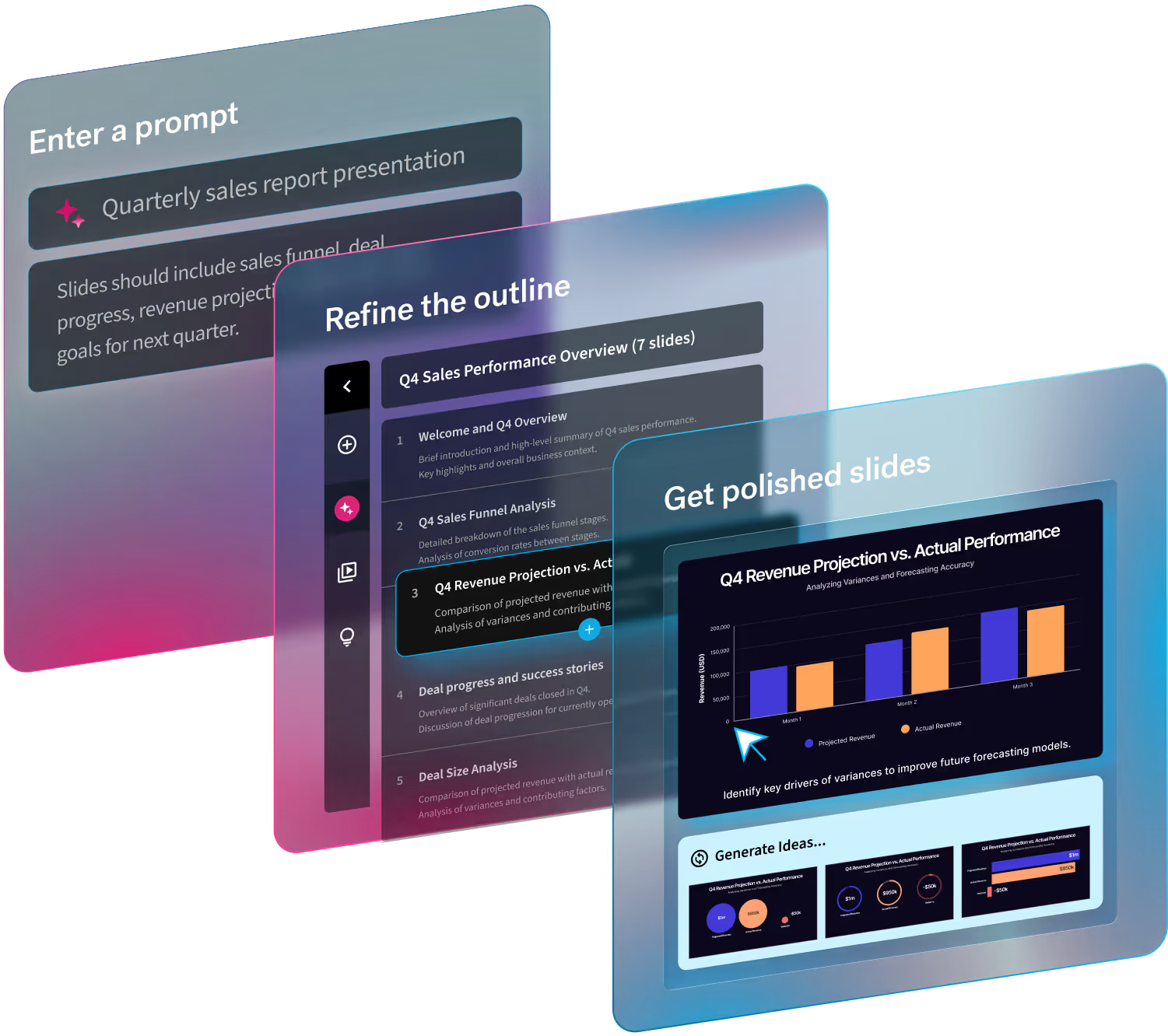
AI dramatically reduces brainstorming time. In Beautiful.ai you can paste notes, key points, or long-form text as context for your prompt, and the AI assistant generates a structured draft deck while Smart Slides handle the formatting. That keeps the final polish step short.
7. Do a 5-minute final polish
Before presenting:
- Check alignment and spacing
- Remove extra words
- Ensure consistent formatting
- Test readability from a distance
Ask: “Can someone understand this slide in 5 seconds?” If yes, you’re ready.
What is the fastest way to create a presentation?
The fastest way to create a presentation is to define one clear goal, pick a professionally designed template, let AI draft the slides, and finish with a five-minute polish. In Beautiful.ai the whole sequence fits inside an hour because Smart Slides handle the formatting while you edit.
- Use a modern presentation tool
- Define your goal
- Use a template
- Outline first
- Keep one idea per slide
- Leverage AI to draft content
- Do a quick polish
Focus on clarity, use structured templates, and let AI handle drafting and formatting. The fastest presentations are the most focused ones. Optimize for simplicity and structure and you can create professional, persuasive slides in under an hour.





.gif)
.gif)
